Complete Guide: Registering a .xyz Numeric Domain for $1 in 2025
目錄 👇
Teach you how to register a domain name at a very affordable price and use it for 10 years……
Notice-Tip
cheap domain names
Introduction
- Now (early 2025), you can still register at a low price. xyz Domain: **Introduces registration at a very low price (US$1). The method for digital domain names, and it can be renewed for up to 10 years. **
- The advantages of the .xyz domain include: it is a top-level domain, easy to remember, simple to register, secure and stable, and can be hosted on Cloudflare (CF).
Free Domain
- There are many free domain providers available on the market, but they typically require cumbersome registration processes, and their stability and availability are unreliable.
- The speaker suggests trying to register a free domain from these providers if you’re lucky.
XYZ Domain
- The sister domain of XYZ will be introduced.
- Six-digit or longer digital domains can be purchased for just US$1 per year and can be renewed for up to 10 years.
- Features: top-tier domain, easy to remember, simple registration, secure and stable, and can be hosted on Cloudflare.
- “Now is the time to get it, or you might regret it later!”
Register the XYZ Domain
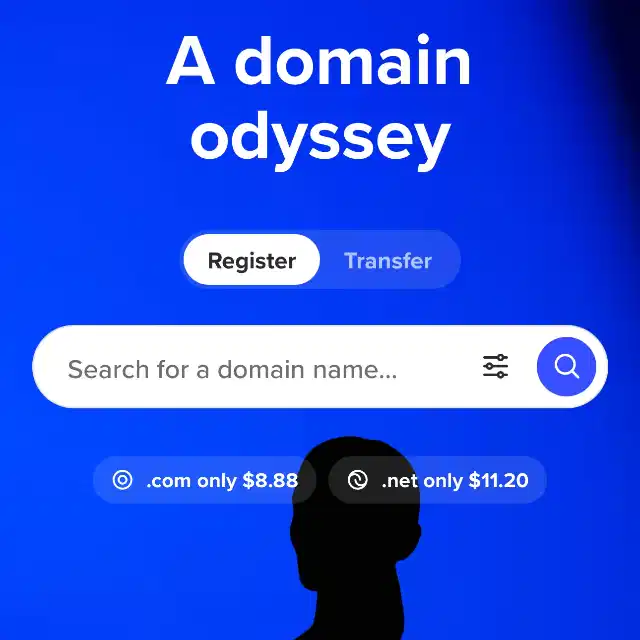
- Go to the 【spaceship】 official website and enter the desired digital domain in the domain search.
- It must be a 6-digit number to register the XYZ domain.
- If the domain is available, it will display “Available”.
- The price should be $0.67.
- Click “Join”, then click on the shopping cart icon, and finally click “Checkout”.
- Register Account: Fill in your name, email, username, and password.
- The password must be more than 8 characters long.
- The system will send an email containing a verification code.
- After registration, return to the shopping cart and add a new payment method.
- Optional Visa, PayPal, or Alipay.
- Click on the bottom ‘Edit’, then click on ‘Add address’.
- Information can be freely filled out.
- Uncheck “Automatic Renewal” to purchase for only one year.
- Click “Pay Now” to complete the payment.
Domain hosting to Cloudflare
- Click on “launchpad” to enter the control panel, scroll down to find “DNS Advanced Management,” and click on the purchased domain name.
- Click “Customize Nameserver”.
- Here, you need to fill in the address provided by 【Cloudflare】to host the domain to CF.
- Open Cloudflare.
- Registration for teaching is not demonstrated here.
- Click on “Website → Add Domain”, enter the registered domain name, then click “Continue”.
- Scroll down, select the free plan, then click ‘Continue’.
- If “Record Not Found,” you can ignore it and continue down by clicking ‘Enable’.
- Click ‘Confirm’ in the pop-up window.
- Cloudflare will provide two name servers.
- Copy these two lines of address to spaceship.
- Click “Save” after copying is complete.
- Return to the Cloudflare interface and click ‘Continue’.
- Scroll down the page and click on “Check Nameserver Now”.
- Cloudflare will verify whether the domain has been successfully hosted.
- During the verification process, the domain status will be displayed as ‘pending’.
Domain Status and Management
- About 10 minutes later, the domain status should change to ‘active’, but it may also take longer.
- Once enabled, users can access Cloudflare’s domain management interface and use various services.
Domain renewal
- To renew for 10 years, go to the domain list and click on the domain you want to renew, then click on ‘renew’ in the ‘Expiration Time’ field on the right.
- Choose to renew for 9 years because the maximum holding period is 10 years.
- If new payment methods have been added, payment will be very convenient.